
Developer guide · VS Code
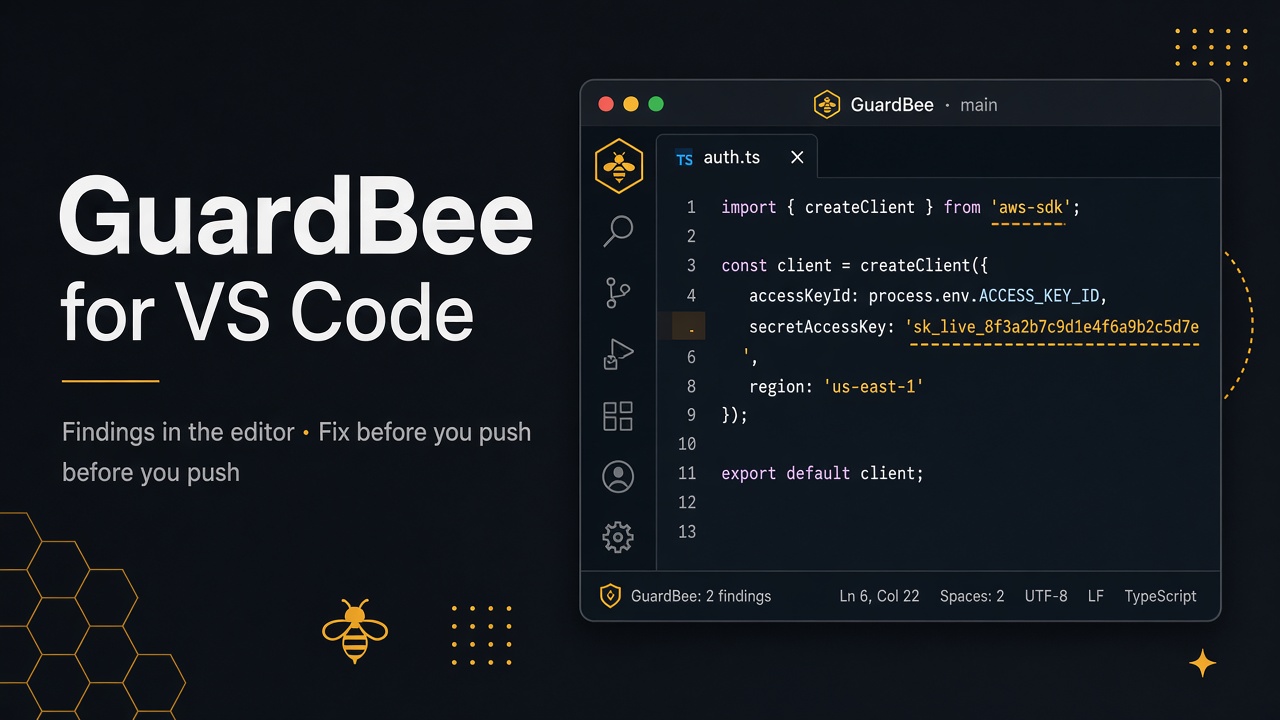
GuardBee for VS Code surfaces security findings in your editor before you commit or push. On save (or on demand) it runs local analysis; results show as squiggles, in the Local Findings view, and on the status bar. Use hover + Quick Fix to remediate, suppress, or allowlist. Cursor / VS Code agents can also check code before saving.
What does it do?
Dashboard scans target live URLs; the VS Code extension targets source code. Secret leaks, AI-code risks, MCP tool audits, and prompt-injection patterns are caught at file/workspace level—so you close risk during development, not after the PR.
- Local findings — scan file / workspace on save or via command
- Diagnostics + Quick Fix — lightbulb to ignore or allowlist
- Agent tools —
#guardbeeScanFile,#guardbeeScanWorkspace,#guardbeeCheckCode - Remote scans — connect your account and trigger dashboard jobs
Install from Marketplace
- Open Extensions in VS Code or Cursor
- Search GuardBee (publisher:
guardbee-ai) - Click Install — or open the Marketplace page
- Open a workspace; GuardBee appears in the status bar
How findings appear in VS Code
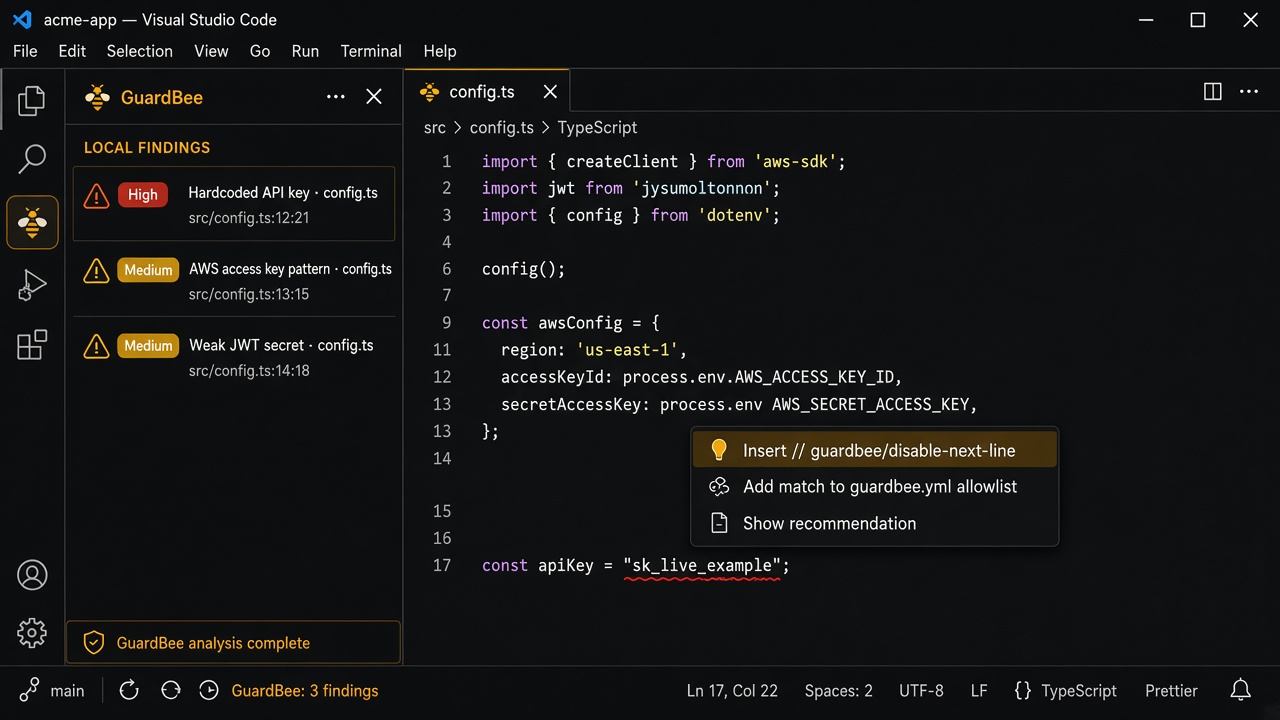
After a scan you get three signals:
- Editor — squiggle on the line; hover for the recommendation
- Local Findings — GuardBee sidebar (severity + file:line)
- Status bar — e.g.
GuardBee: 3 findings; click to focus Local Findings
Command Palette (Cmd/Ctrl+Shift+P): GuardBee: Scan Current File / GuardBee: Scan Workspace. guardbee.scanOnSave is on by default.
How to fix findings during development
When a finding appears, follow this order instead of ignoring everything:
1) Prefer a real fix
Most high/critical hits are hardcoded secrets or unsafe patterns. Move the value to an env var or secret manager.
// ❌ Before
const client = createClient({
  apiKey: "sk_live_example",
});

// ✅ After
const client = createClient({
  apiKey: process.env.OPENAI_API_KEY!,
});
Save again; the extension rescans and the squiggle should clear—no secret in the commit.
2) Read the hover recommendation
Hover the squiggle for the pattern plus a short recommendation. Agent tools return the same location/guidance and do not send matched credential values to the model.
3) Quick Fix: ignore (line suppress)
For a false positive or intentional demo line, pick GuardBee: ignore this finding. The extension inserts the right comment for the language:
// TypeScript / JS
// guardbee-disable-next-line
const demo = "example";

const demo2 = "example"; // guardbee-disable-line

# Python / YAML / shell
# guardbee-disable-next-line

<!-- HTML / Markdown -->
<!-- guardbee-disable-next-line -->

/* CSS */
/* guardbee-disable-next-line */
Optionally scope by scanner: // guardbee-disable-next-line secret. Plain JSON has no line comments, so ignore Quick Fix is unavailable—use an allowlist instead.
4) Quick Fix: workspace allowlist
If a test fixture value repeats across the repo, choose GuardBee: add match to workspace allowlist. That updates root guardbee.yml (or guardbee.yaml / .guardbee.yml):
secret:
  allowlist:
    - "sk_live_example"
  exclude:
    - "**/fixtures/**"
    - "**/*.snap"
ai-code:
  exclude:
    - "examples/**"
exclude globs skip paths; allowlist suppresses matching strings. Never allowlist real production secrets—only deliberate test values.
5) Tune settings to cut noise
| Setting | Purpose |
|---|---|
guardbee.scanOnSave | Auto-scan on save (default: on) |
guardbee.severityThreshold | critical / high / medium / low |
guardbee.enabledScanners | Which local analyzers run |
guardbee.apiBaseUrl | Dashboard API for remote scans |
6) Check with agents before saving
In Cursor / VS Code agent chat:
#guardbeeScanFile— current file or path#guardbeeScanWorkspace— folder scan#guardbeeCheckCode— unsaved / generated code- or
@guardbee/@guardbee /file/@guardbee /workspace
Critical/high findings return canProceed: false—useful to block “save/commit” suggestions.
Dashboard (remote) scans
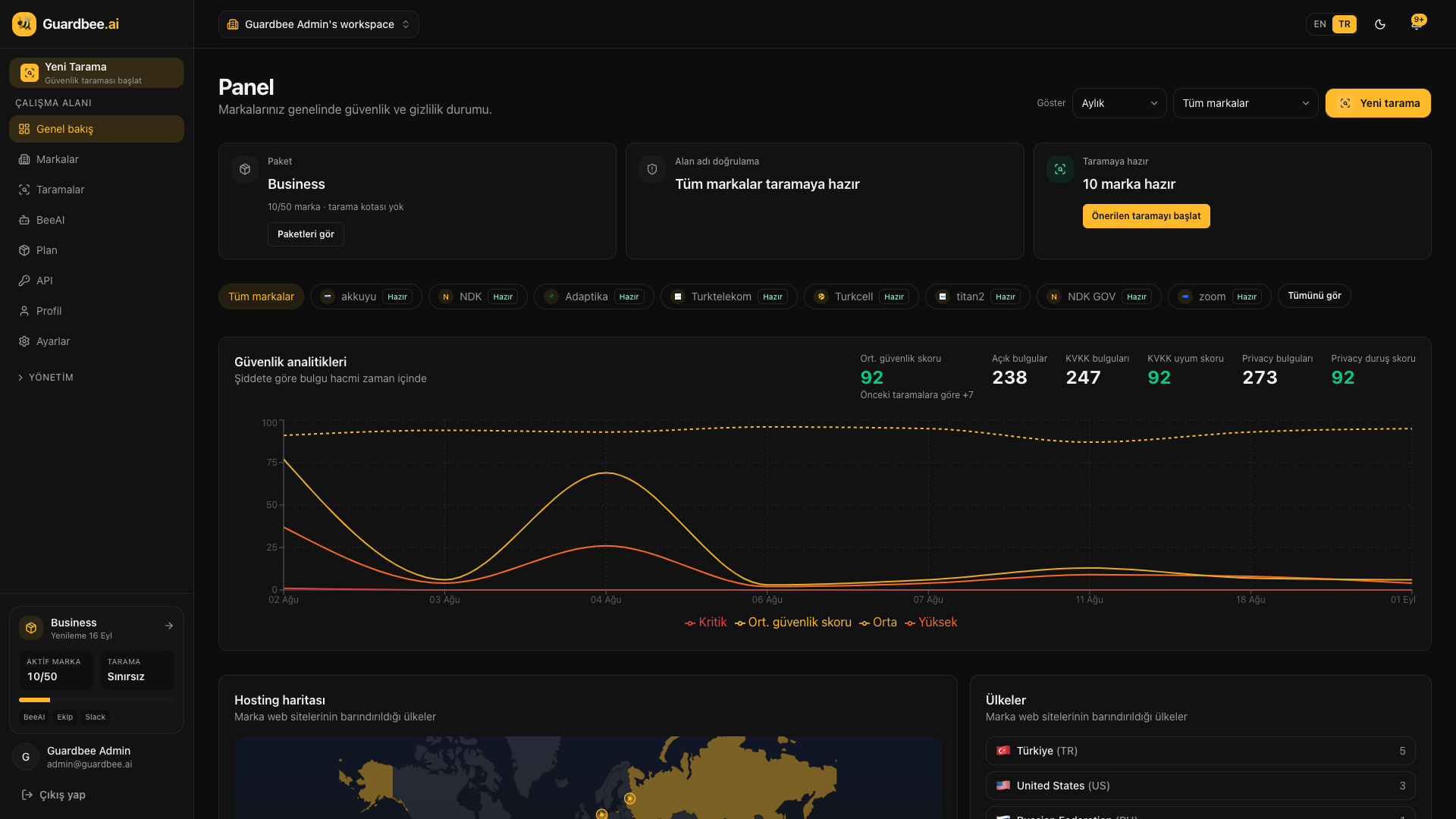
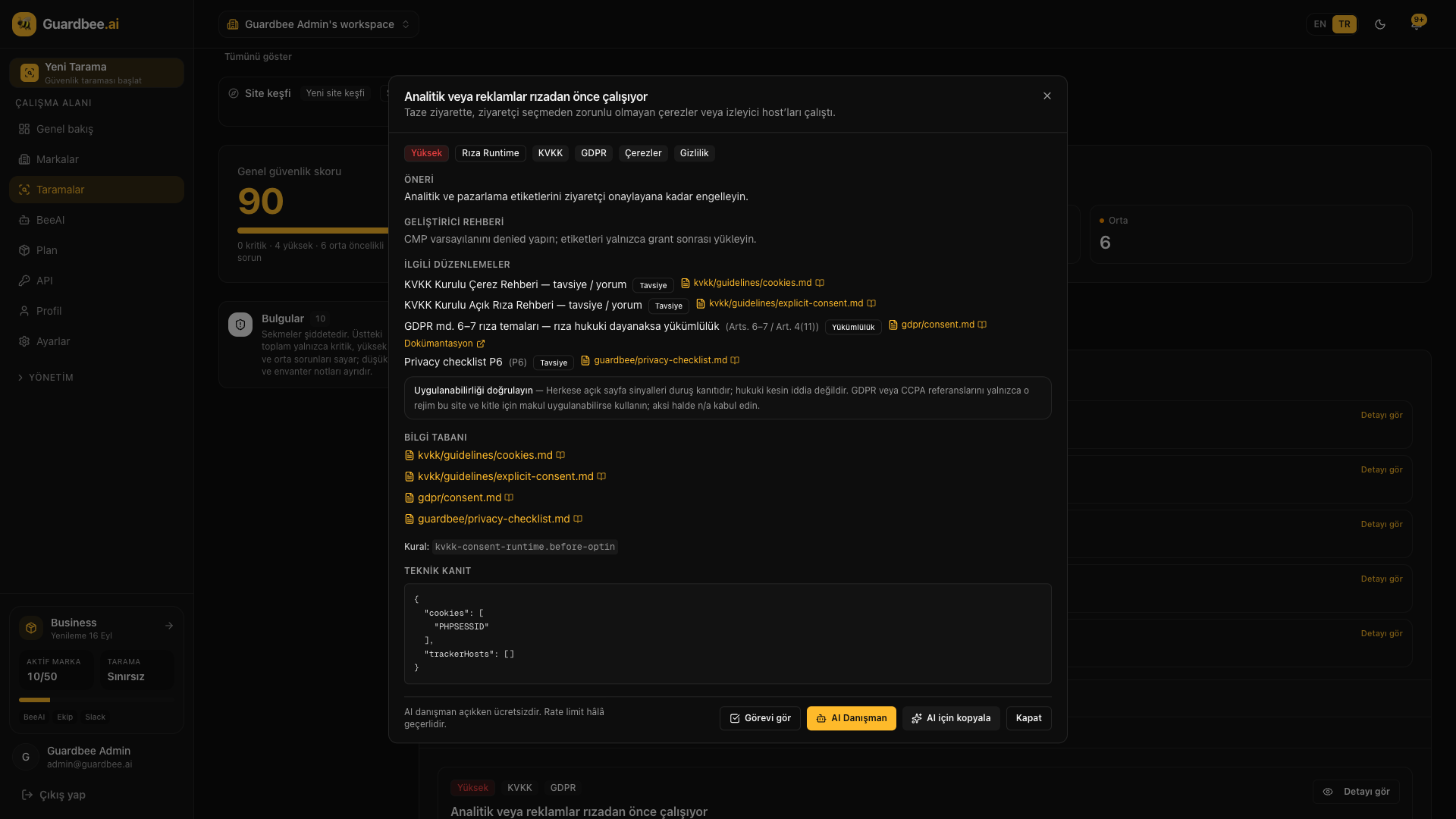
- Create a credential on the Developers page
- Run
GuardBee: Connect Accountand paste it GuardBee: Trigger Remote Scan— pick a Brand or enter a URL- Results land in Remote Scans;
GuardBee: Show Recent Scanslists the last 10 jobs
Known limit: Remote findings target live URLs and have no file/line locations—they only appear in Remote Scans. Use Local Findings for source fixes.
Recommended daily workflow
- Code on a feature branch; watch Local Findings as you save
- High/critical → move secrets to env or harden the code
- False positive → Quick Fix ignore or guardbee.yml allowlist / exclude
- Before PR:
GuardBee: Scan Workspaceor#guardbeeScanWorkspace - Optional: Connect Account + remote scan to verify the live surface
Related links
- VS Code Marketplace — GuardBee
- GitHub — guardbee-vscode
- Integrations
- MCP servers
- Start free Guardbee trial
Catch it in the editor, not in production
Close secret and AI-security findings during development with GuardBee for VS Code. Try brand scans with a 14-day free trial.
Frequently asked questions
Does it work in Cursor?
Yes. Cursor is VS Code-based—install GuardBee from the Marketplace and use the same commands, Quick Fixes, and agent tools.
Do findings leave my machine?
Local findings run in the editor against your workspace. Agent tools return locations and recommendations and do not send matched credential values to the model. Remote scans require Connect Account.
Which scanners are included?
The extension uses @guardbee MCP packages: secret-scanner, ai-code-scanner, mcp-server-auditor, and prompt-injection-scanner. Control them with guardbee.enabledScanners.
Ignore vs allowlist?
One-off line/file → ignore (disable comment). Recurring test value or path → guardbee.yml allowlist / exclude.